

- Prerequisites
- Create a Connected App in Salesforce
- Create a New Sync Job in WordPress
- Configure IP Whitelist (Optional Alternative to Security Token)
- Enable Username-Password Flow in Salesforce
- Map Standard Salesforce Fields
- Map Custom Salesforce Fields (Optional)
- Run the Sync
- Troubleshooting Tips
- Video Tutorial
- Add a Clause in the Salesforce SOQL Query
- Need Help?
Agile Sync Addon allows you to automatically synchronize Salesforce data—such as accounts, custom fields, and object attributes—directly into your WordPress-powered Agile Store Locator.
This guide covers how to set up your Salesforce connection, map objects and fields, and run successful sync operations using the Agile Sync Addon.
Prerequisites #
Before starting:
- You must have admin access to both WordPress and Salesforce.
- Agile Sync Addon must be installed and activated.
- API access must be enabled in your Salesforce plan.
Create a Connected App in Salesforce #
- Log in to your Salesforce account.
- Go to Setup > App Manager.
- Click New Connected App.
- Fill out the basic app details (App Name, Contact Email).
- Enable OAuth Settings:
- Check Enable OAuth Settings.
- Add a temporary Callback URL (e.g.
https://localhost/callback). - Add OAuth scopes:
Access and manage your data (api)Perform requests on your behalf (refresh_token, offline_access)
- Click Save and wait 5–10 minutes for the app to activate.
- Open the app, click Manage Consumer Details, and verify your identity.
- Copy your Consumer Key and Consumer Secret.

Create a New Sync Job in WordPress #
- Go to Agile Store Locator > Agile Sync.
- Click Add New Job.
- Select Salesforce as the platform.
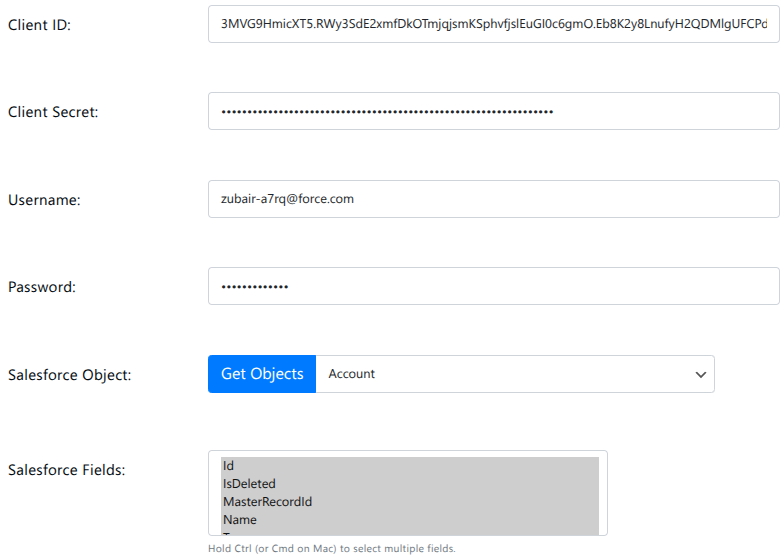
- Enter:
- Client ID (Consumer Key)
- Client Secret
- Username
- Password (+ Security Token) or whitelist your IP in Salesforce.
- Click Test Connection to verify.
Configure IP Whitelist (Optional Alternative to Security Token) #
- In Salesforce Setup, go to Profiles > choose your user profile (e.g., System Administrator).
- Click Login IP Ranges > New.
- Add a wide IP range (e.g.
0.0.0.0to255.255.255.255) for testing. - Save changes.

Enable Username-Password Flow in Salesforce #
If your test connection fails with a “Password Flow Disabled” error:
- Go to Setup > OAuth and OpenID Connect Settings.
- Enable Username-Password Flow.
Map Standard Salesforce Fields #
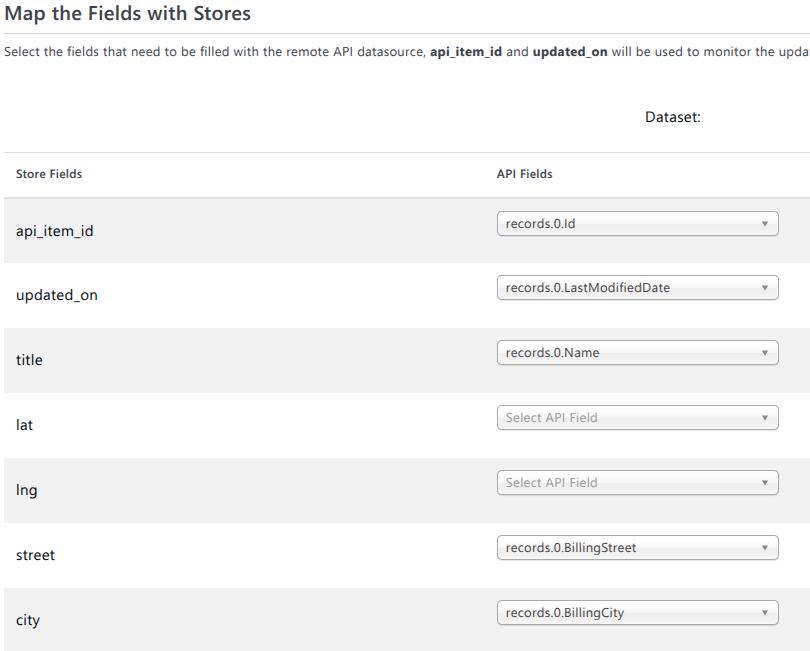
- Click Start Mapping from your sync job screen.
- Select the Salesforce object (e.g.
Account). - Map required fields:
- ID → Plugin’s
API Item ID - LastModifiedDate →
Update Timestamp - Name →
Store Title - Latitude / Longitude → Coordinates
- Address Fields → Address lines
- Description → Store Description
- ID → Plugin’s
- Click Save Mapping.
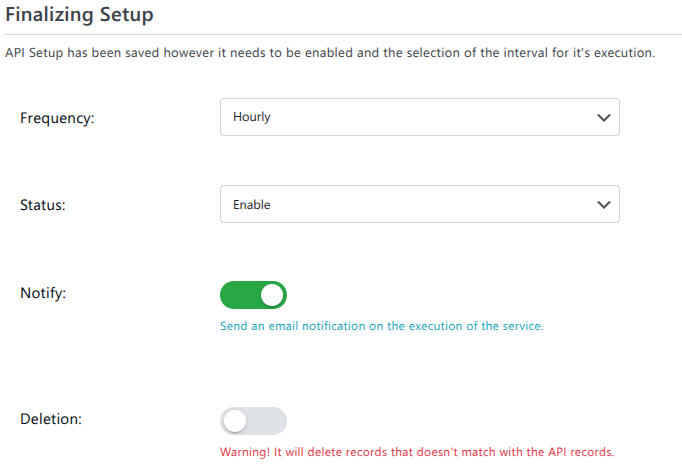
- Enable notifications if desired (sends an email after every sync).
- Enable “Delete Orphan Records” to remove stores not present in Salesforce.
Map Custom Salesforce Fields (Optional) #
Example: Map “Categories” and “Disabled” Fields #
- In Salesforce, go to Account > Fields & Relationships.
- Create:
- A Picklist field named
Categories - A Checkbox field named
Disabled
- A Picklist field named
- Update some test records:
- Assign category values like
Distributor,Favorite - Check the Disabled box for inactive entries
- Assign category values like
- Back in Agile Sync:
- Click Get Objects to refresh schema.
- Re-select
Account. - Map
Categoriesto store categories. - Map
Disabledto control store visibility.
- Click Save Mapping.
Run the Sync #
- From the sync job, click Run Sync Now.
- After execution:
- Navigate to Managed Stores.
- Verify synced fields like categories and status.
- Disabled stores will be hidden based on your field mapping.
Troubleshooting Tips #
- If fields don’t appear, re-fetch objects using Get Objects.
- If sync fails, check:
- API credentials
- IP whitelisting
- Username-Password Flow
- Correct field mappings
Video Tutorial #
Add a Clause in the Salesforce SOQL Query #
If you want to sync only specific Salesforce records (for example, accounts that belong to certain account groups), you can use the following filters to control the SOQL query that Agile Sync Addon sends to Salesforce.
Add this code to your theme’s functions.php file or a custom plugin:
/**
 * Change the LIMIT of the Salesforce query
 * Return a number to set LIMIT, or null to remove it.
 */
add_filter('asl_sync_salesforce_limit', function($limit) {
    return 500; // or return null to remove LIMIT
}, 10, 1);

/**
 * Add a WHERE clause to the Salesforce SOQL query
 */
add_filter('asl_sync_salesforce_soql', function ($soql, $config, $fields, $object, $limit) {

    //  Custom WHERE clause
    $where = "WHERE Account_Group__c = 'Black Master Dealer' "
           . "OR Account_Group__c = 'Gold Master Dealer' "
           . "OR Account_Group__c = 'Master Dealer'";

    //  Apply LIMIT if it is set
    $limit_clause = ($limit !== null && $limit !== '') ? " LIMIT {$limit}" : '';

    //  Build and return the final SOQL query
    return "SELECT " . implode(',', $fields) . " FROM {$object} {$where}{$limit_clause}";

}, 10, 5);
Need Help? #
If you encounter issues, contact our support team at [email protected] with:
- Your sync job settings
- The object name and field mappings
- A screenshot of the error (if any)


