

- What Is a Mapbox Access Token?
- What Does Agile Store Locator Use Mapbox For?
- Do I Need to Enable the Mapbox Places API?
- Step 1: Create a Mapbox Account
- Step 2: Open the Access Tokens Page
- Step 3: Create a New Public Access Token
- Step 4: Configure the Required Public Permissions
- Step 5: Make Sure Geocoding Is Available
- Step 6: Add Website URL Restrictions
- Step 7: Copy Your Mapbox Public Access Token
- Step 8: Add the Mapbox Access Token to Agile Store Locator
- Step 9: Use Mapbox for the Map
- Step 10: Use Mapbox for Address Autocomplete
- Mapbox for Maps and Search Are Separate
- Recommended Mapbox Configuration
- How to Test Your Mapbox Access Token
- Troubleshooting Mapbox Access Token Errors
- Should I Use the Default Mapbox Token?
- Mapbox Geocoding Result Storage
- Frequently Asked Questions
- Which Mapbox token should I use with Agile Store Locator?
- Do I need to enable a Mapbox Places API?
- Does Mapbox Geocoding API support autocomplete?
- Can the same Mapbox token display maps and provide autocomplete?
- Can I use Mapbox autocomplete while using another map provider?
- Should I restrict my Mapbox token to my domain?
- Why is my Mapbox token visible in the browser?
- Where can I manage my Mapbox Access Tokens?
- Where can I read the Mapbox Geocoding API documentation?
Agile Store Locator can use Mapbox with MapLibre to display maps and provide address autocomplete on your WordPress Store Locator.
To connect to Mapbox, you need a valid Mapbox Public Access Token. The same token can be used by Agile Store Locator to load Mapbox maps and access the Mapbox Geocoding API for address search and autocomplete.
This guide explains how to create a Mapbox Access Token, configure the required permissions, secure the token for your website, and add it to Agile Store Locator.
What Is a Mapbox Access Token? #
A Mapbox Access Token authorizes your website to access Mapbox services.
Mapbox provides two main types of tokens:
- Public tokens (
pk) — designed for websites, browser applications, maps, and public API requests. - Secret tokens (
sk) — designed for secure server-side operations and must never be exposed publicly.

For Agile Store Locator, you should use a Public Access Token beginning with:
pk.
Important: Do not enter a Mapbox Secret Access Token beginning with
sk.into the Mapbox Access Token field. The Store Locator runs in the visitor’s browser, so the token can be visible in frontend requests.
What Does Agile Store Locator Use Mapbox For? #
Mapbox can be used for two separate functions in Agile Store Locator.
1. Displaying the Map #
When you select:
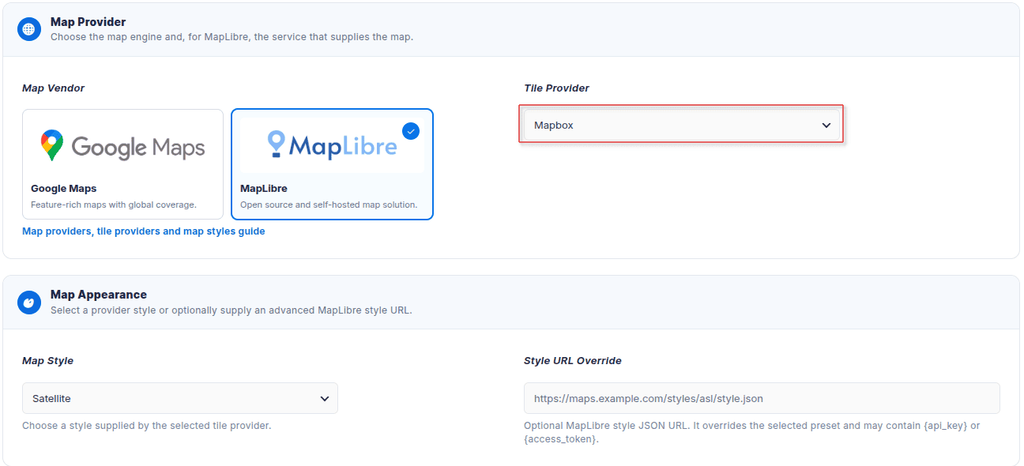
Map Vendor → MapLibre
and:
Tile Provider → Mapbox
Agile Store Locator uses Mapbox as the tile and style provider for the MapLibre map.
The Mapbox Access Token authorizes access to the Mapbox resources needed to display the map.
2. Address Search and Autocomplete #
Mapbox can also be selected as the address search provider.

Agile Store Locator uses the current Mapbox Geocoding API v6 Forward Geocoding endpoint:
https://api.mapbox.com/search/geocode/v6/forward
As a visitor types an address or place into the Store Locator search field, Agile Store Locator sends the search text and your Mapbox Access Token to this endpoint.
A complete request is similar to:
https://api.mapbox.com/search/geocode/v6/forward?q=New%20York&access_token=YOUR_MAPBOX_ACCESS_TOKEN
Mapbox’s Forward Geocoding API returns matching locations, standardized addresses, geographic context, and coordinates that Agile Store Locator can use for location searching.
Do I Need to Enable the Mapbox Places API? #
No separate Places API needs to be enabled in Mapbox.
This differs from Google Maps, where individual APIs may need to be enabled through Google Cloud Console.
For Agile Store Locator, address suggestions are provided through the Mapbox Geocoding API v6.
The endpoint used is:
https://api.mapbox.com/search/geocode/v6/forward
Mapbox calls this Forward Geocoding.
Autocomplete is supported by the same endpoint and is enabled by default.
Therefore, you do not need to look for or enable a separate “Mapbox Places API.”
You simply need:
- An active Mapbox account.
- A valid Public Access Token.
- Access to the Mapbox services used by your configuration.
- Mapbox selected as the appropriate provider in Agile Store Locator.
Step 1: Create a Mapbox Account #
Visit Mapbox and create an account if you do not already have one.
https://www.mapbox.com/
After creating your account, sign in to the Mapbox Console.
Step 2: Open the Access Tokens Page #
Open the Mapbox Access Tokens page:
https://console.mapbox.com/account/access-tokens/
Your Mapbox account includes a Default Public Token.
The default token can be useful for initial testing, but for a production website we recommend creating a separate token specifically for your Store Locator.
Using a dedicated token makes it easier to:
- Track your Store Locator usage
- Restrict the token to your website
- Replace a compromised token
- Separate development and production environments
Step 3: Create a New Public Access Token #
On the Access Tokens page, choose the option to create a new token.
Give the token a descriptive name, for example:
Agile Store Locator
or:
My Website - Store Locator
This makes the token easier to identify later.
Step 4: Configure the Required Public Permissions #
Agile Store Locator needs a public token, not a secret administrative token.
If Mapbox presents permission or scope options while creating the token, make sure the token can read the resources required to display your Mapbox map.
For Mapbox-hosted map styles, the important public permissions include:
- Styles: Read
- Fonts: Read
Do not add secret/write permissions that Agile Store Locator does not need.
The goal is to create a frontend public token with only the permissions necessary to display maps and perform public Mapbox API requests.
Security Recommendation: Follow the principle of least privilege. Never enable uploads, write access, token management, or other secret scopes for a token that will be used in a public WordPress frontend.
Step 5: Make Sure Geocoding Is Available #
Agile Store Locator uses the Mapbox Geocoding API when Mapbox is selected for address search.
There is no separate switch in the Mapbox dashboard that you need to turn on for a “Places API.”
Your public access token is supplied with requests to:
https://api.mapbox.com/search/geocode/v6/forward
The request contains an access_token parameter, such as:
access_token=YOUR_MAPBOX_ACCESS_TOKEN
Mapbox requires a valid access token for Forward Geocoding requests.
How Autocomplete Works #
Mapbox Geocoding API v6 supports an autocomplete option.
Mapbox currently enables autocomplete by default, so a request does not have to explicitly include:
autocomplete=true
As a visitor types a partial address, Mapbox can return matching results instead of waiting for a complete address.
For example, a visitor may start typing:
1600 Pennsylvania
and Mapbox can return suitable address suggestions for Agile Store Locator to display.
Important: Geocoding and autocomplete requests count toward your Mapbox usage. Check your current Mapbox plan and pricing limits if your Store Locator receives significant search traffic.
Step 6: Add Website URL Restrictions #
Because a Public Access Token is used in the browser, visitors can potentially see it in frontend network requests.
This is normal for a Mapbox public token.
For additional protection, Mapbox allows you to restrict a token to approved website URLs.
For example, if your Store Locator is hosted at:
https://example.com/
you can restrict the token so requests are accepted from your website.
A domain restriction could be:
example.com
or, when appropriate:
https://example.com
Mapbox allows subdomains of an allowed domain under its URL-matching rules.
Development and Localhost #
If you are testing Agile Store Locator locally, remember that a production-domain restriction will not automatically authorize localhost.
You may need to explicitly allow your local development address, for example:
http://localhost
Mapbox recommends considering a separate development token for local environments.
Important: Mapbox URL restrictions do not support wildcard characters or IP addresses. Configure allowed URLs according to Mapbox’s current URL restriction requirements.
Mapbox token security documentation:
https://docs.mapbox.com/accounts/guides/tokens/
Step 7: Copy Your Mapbox Public Access Token #
Once your token has been created, copy it from the Mapbox dashboard.
A Public Access Token begins with:
pk.
For example:
pk.eyJ1Ijo...YOUR_TOKEN...
Do not copy or use a token beginning with:
sk.
An sk token is a secret token and should never be exposed on a public Store Locator.
Step 8: Add the Mapbox Access Token to Agile Store Locator #
Log in to your WordPress dashboard and go to:
Agile Store Locator → ASL Settings → Maps
Find the API Credentials section.
Locate:
Mapbox Access Token
Paste your Mapbox Public Access Token into the field.
For example:
pk.eyJ1Ijo...YOUR_TOKEN...
Save the settings.
Step 9: Use Mapbox for the Map #
If you want Mapbox to provide the actual map displayed by Agile Store Locator, configure:
Map Vendor → MapLibre
Then select:
Tile Provider → Mapbox
Choose your preferred Map Style under the Map Appearance section.
Your configuration will now be:
Map Vendor: MapLibre
Tile Provider: Mapbox
Mapbox Access Token: pk.YourPublicToken
Save your settings and open the page containing your Store Locator.
The map should now be rendered by MapLibre using Mapbox as its map provider.
Step 10: Use Mapbox for Address Autocomplete #
You can also use Mapbox for the Store Locator address search.
Go to:
Agile Store Locator → ASL Settings → Maps → Visitor Search
Select the address search option that uses Mapbox.
Make sure your Mapbox Access Token has already been entered under API Credentials.
Agile Store Locator will then use Mapbox’s Forward Geocoding service for visitor searches.
Internally, address searches are sent to:
https://api.mapbox.com/search/geocode/v6/forward
This allows visitors to type addresses, cities, postal locations, and other supported geographic searches into the Store Locator.
Mapbox for Maps and Search Are Separate #
It is important to understand that the Map Provider and Visitor Search Provider are separate settings in Agile Store Locator.
You can use Mapbox for both:
Map Vendor: MapLibre
Tile Provider: Mapbox
Search Provider: Mapbox
But you are not required to use the same provider for both functions.
For example, you could use MapLibre with another Tile Provider while still using Mapbox for address autocomplete.
This flexibility lets you choose the map and search services that best fit your requirements.
Recommended Mapbox Configuration #
For a typical production Store Locator using Mapbox for both maps and autocomplete, we recommend:
Map Vendor: MapLibre
Tile Provider: Mapbox
Search Provider: Mapbox
Token Type: Public Access Token (pk)
Create a dedicated Mapbox token for your website and apply suitable URL restrictions.
Do not use a Secret Access Token.
How to Test Your Mapbox Access Token #
After saving your settings:
- Open the WordPress page containing Agile Store Locator.
- Confirm that the map loads normally.
- Enter an address into the Store Locator search field.
- Confirm that address suggestions appear.
- Select a suggestion and verify that the Store Locator searches around the selected location.
If both the map and autocomplete work, your Mapbox configuration is complete.
Troubleshooting Mapbox Access Token Errors #
The Map Is Not Loading #
First, verify that:
- Map Vendor is set to MapLibre.
- Tile Provider is set to Mapbox.
- A valid Mapbox Public Access Token has been entered.
- The token has the required public map-reading permissions.
- Your Mapbox account is active.
- Your website is permitted by any URL restrictions configured on the token.
You can also open your browser’s developer tools and check the Network and Console tabs for Mapbox errors.
Address Autocomplete Is Not Working #
If the map loads but address autocomplete does not, check the Visitor Search configuration separately.
Make sure:
- Mapbox is selected as the address search provider.
- The Mapbox Access Token has been saved correctly.
- Requests to the Mapbox Geocoding API are not being blocked.
- Your Mapbox account has access to the required service.
- You have not exceeded applicable Mapbox usage limits.
The API request should be sent to:
https://api.mapbox.com/search/geocode/v6/forward
401 Unauthorized #
A 401 response generally indicates a problem with authentication.
Check that the Access Token is complete and has not been deleted, rotated, or copied incorrectly.
Your frontend token should normally begin with:
pk.
403 Forbidden #
A 403 response may occur when URL restrictions prevent the request from being used on the current website.
Check the Allowed URLs configured for your Mapbox token.
If you are developing locally, make sure your localhost environment is specifically allowed or use a separate development token.
It Works on Production but Not Localhost #
A URL-restricted token will reject requests from localhost unless localhost is allowed.
For local testing, you can configure an appropriate development URL such as:
http://localhost
or create a separate Mapbox development token.
It Works Until I Add URL Restrictions #
Check the browser’s request headers and make sure your website sends a valid Referer header matching one of the URLs allowed by your token.
Strict Referrer Policies, privacy extensions, or other browser/security configurations may interfere with URL-restricted Mapbox tokens.
Should I Use the Default Mapbox Token? #
Mapbox automatically provides a default public token.
You can use it for initial testing, but Mapbox recommends creating separate tokens for specific applications and environments.
For a production Agile Store Locator installation, creating a dedicated token such as:
Agile Store Locator - Production
makes usage management and token rotation easier.
You can also create another token for development:
Agile Store Locator - Development
Mapbox Geocoding Result Storage #
Mapbox distinguishes between Temporary and Permanent geocoding results.
The Geocoding API uses temporary geocoding by default. Mapbox places restrictions on storing temporary geocoding results.
If you intend to permanently save or cache results returned by Mapbox, review the current Mapbox Geocoding API terms and the requirements for permanent geocoding.
This distinction is particularly important when developing custom integrations beyond the normal Store Locator autocomplete workflow.
Mapbox Geocoding API documentation:
https://docs.mapbox.com/api/search/geocoding/
Frequently Asked Questions #
Which Mapbox token should I use with Agile Store Locator? #
Use a Public Access Token that begins with:
pk.
Do not expose a Mapbox Secret Access Token beginning with sk. on your frontend.
Do I need to enable a Mapbox Places API? #
No. Mapbox does not require you to enable a separate Places API for Agile Store Locator.
Agile Store Locator uses Mapbox Geocoding API v6 for address autocomplete.
The Forward Geocoding endpoint is:
https://api.mapbox.com/search/geocode/v6/forward
Does Mapbox Geocoding API support autocomplete? #
Yes. Mapbox Forward Geocoding supports autocomplete, and autocomplete is currently enabled by default.
Can the same Mapbox token display maps and provide autocomplete? #
Yes. A properly configured Public Access Token can be used by Agile Store Locator for Mapbox map resources and Mapbox address-search requests.
Can I use Mapbox autocomplete while using another map provider? #
Yes. Map display and Visitor Search are configured separately in Agile Store Locator.
You can use another compatible Tile Provider for your MapLibre map while using Mapbox as the address search provider.
Should I restrict my Mapbox token to my domain? #
For a production website, URL restrictions can provide an additional layer of protection against unauthorized use of your Public Access Token.
Make sure you test the Store Locator after adding restrictions.
Why is my Mapbox token visible in the browser? #
Public Mapbox tokens are designed for client-side applications and may be visible in browser requests.
This is why you should use a restricted Public (pk) token rather than a Secret (sk) token and configure appropriate URL restrictions where suitable.
Where can I manage my Mapbox Access Tokens? #
Open the Mapbox Access Tokens page:
https://console.mapbox.com/account/access-tokens/
Where can I read the Mapbox Geocoding API documentation? #
Use the official Mapbox documentation:
https://docs.mapbox.com/api/search/geocoding/


