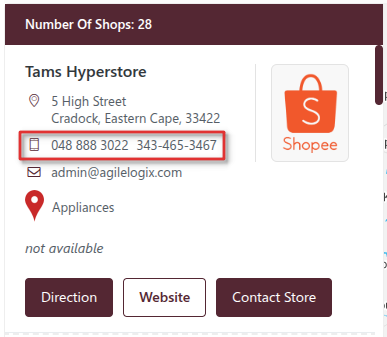

Sometimes a store location needs more than one phone number or email address—for example a main number, support number, and general contact email. You can achieve this in Agile Store Locator by creating additional fields and displaying them in your locator template.
This guide walks you through adding multiple phone numbers and emails for a store and displaying them in your locator using the Template Customizer.
What This Does #
By default, each store can have one phone and one email. If you need more than one of each, follow these steps:
- Create extra contact fields
- Enter the additional data
- Update your template to display the extra contacts
Step 1 — Create Additional Contact Fields #
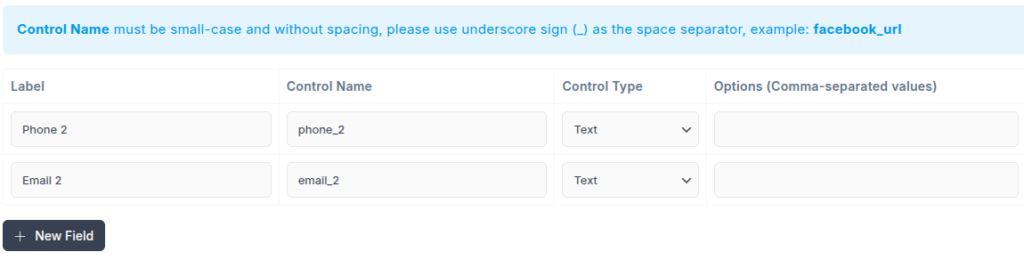
- Go to ASL Settings > Manage Additional Fields in your WordPress admin.
- Click Add New Field to create a second phone number field:
- Label: Phone 2
- Control Name:
phone_2
- Add another field for a second email:
- Label: Email 2
- Control Name:
email_2
- Click Save Fields.
Step 2 — Enter Additional Contact Data #
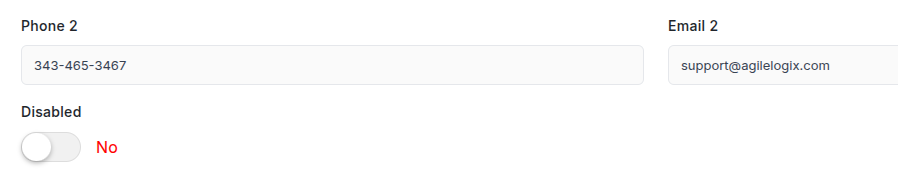
- Go to Stores and edit the store(s) where you want the extra contacts.
- You will now see the new Phone 2 and Email 2 fields.
- Enter the extra phone numbers and emails you want.
- Save the store(s).
Step 3 — Update Your Template #
To display the new contact fields:
- Go to ASL Settings > Customizer.
- Select the template you are using from the dropdown.
- Click Load Template to load its HTML into the editor.
Locate the section where phone and email are output.
Version A — Each Contact on Its Own Line #
If you want each phone/email on its own line with individual icons:
{{if phone}}
<li class="sl-phone">
    <i class="icon-mobile"></i>
    <a href="tel:{{:phone}}">{{:phone}}</a>
</li>
{{/if}}

{{if phone_2}}
<li class="sl-phone-2">
    <i class="icon-mobile"></i>
    <a href="tel:{{:phone_2}}">{{:phone_2}}</a>
</li>
{{/if}}

{{if email}}
<li class="sl-email">
    <i class="icon-mail"></i>
    <a href="mailto:{{:email}}">{{:email}}</a>
</li>
{{/if}}

{{if email_2}}
<li class="sl-email-2">
    <i class="icon-mail"></i>
    <a href="mailto:{{:email_2}}">{{:email_2}}</a>
</li>
{{/if}}
Version B — Phones Together, Emails Together (Single Icon Per Line) #
If you want the phones on the first line with one phone icon and the emails on a second line with one email icon, use this:
{{if phone || phone_2}}
<li class="sl-phones">
    <i class="icon-mobile"></i>

    {{if phone}}
    <a href="tel:{{:phone}}" class="mr-2">{{:phone}}</a>
    {{/if}}

    {{if phone_2}}
    <a href="tel:{{:phone_2}}" class="mr-2">{{:phone_2}}</a>
    {{/if}}
</li>
{{/if}}

{{if email || email_2}}
<li class="sl-emails">
    <i class="icon-mail"></i>

    {{if email}}
    <a href="mailto:{{:email}}" class="mr-2">{{:email}}</a>
    {{/if}}

    {{if email_2}}
    <a href="mailto:{{:email_2}}" class="mr-2">{{:email_2}}</a>
    {{/if}}
</li>
{{/if}}
Step 4 — Save Your Template #
After adding either version of the code:
- Click Save Template.
- Visit your store locator on the front end to confirm the new layout displays correctly.