
Table of Contents
This guide explains how to add Agile Store Locator to a page using Elementor in a safe and supported way.
Step-by-Step Instructions #
- Open the page in Elementor
- Go to Pages → All Pages in WordPress.
- Click Edit with Elementor on the page where you want to display the store locator.
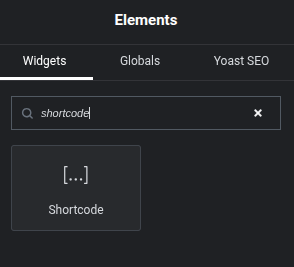
- Search for the Shortcode widget
- In the Elementor left panel (Widgets section), search for “Shortcode”.
- Add the Shortcode widget to the page
- Drag and drop the Shortcode widget into your page layout.
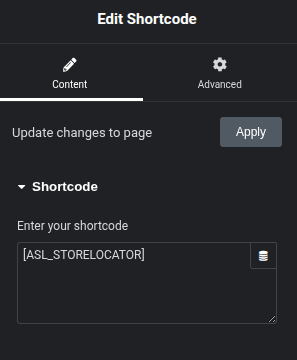
- Insert the Agile Store Locator shortcode
- In the shortcode field, paste the following:
[ASL_STORELOCATOR]
- In the shortcode field, paste the following:
- Update / Publish the page
- Click Update (or Publish) to save your changes.
- View the page on the frontend to confirm the store locator is loading correctly.
Important Notice About Elementor HTML Widget #
- Since Elementor version 3.33.5, the HTML widget is no longer supported for Agile Store Locator.
- Using the HTML widget can break the store locator UI due to how Elementor now processes inline HTML and scripts.
- Always use the Shortcode widget to embed
[ASL_STORELOCATOR].