

- Prerequisites
- Step-by-Step Guide
- Step 1: Enable the "WePOS Integration" Option on Multi Store Addons for WooCommerce
- Step 2: Install the WePOS Plugin
- Step 3: Add An Outlet on WePOS
- Step 4: Assign a Counter and Cashier to Your Outlet
- Step 5: Link a store with WePOS
- Step 6: Go to View POS
- Step 7: Change Product Prices and Stock via CentralStock
- Result
- Order Summary
- Video
This guide explains how to connect WePOS with the Multi-Store Addons for WooCommerce, allowing you to manage product prices and stock centrally across multiple outlets.
Prerequisites #
Before you begin, make sure: #
- WordPress and WooCommerce are installed and activated
- Multi Store Addons for WooCommerce is installed and configured
- WePOS plugin is installed
- You have administrator access to WordPress
Step-by-Step Guide #
Step 1: Enable the “WePOS Integration” Option on Multi Store Addons for WooCommerce #
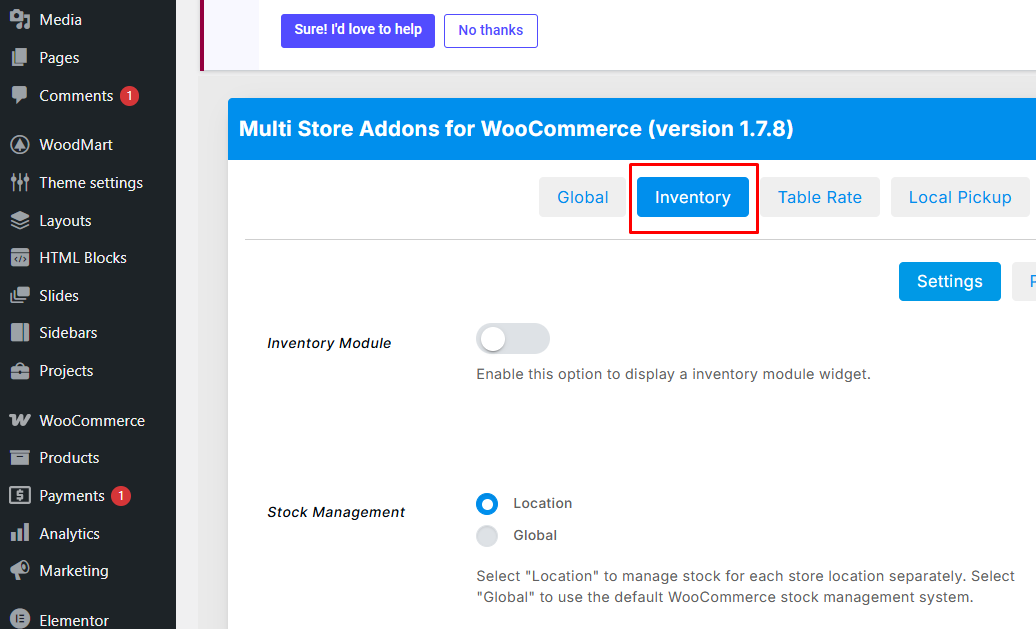
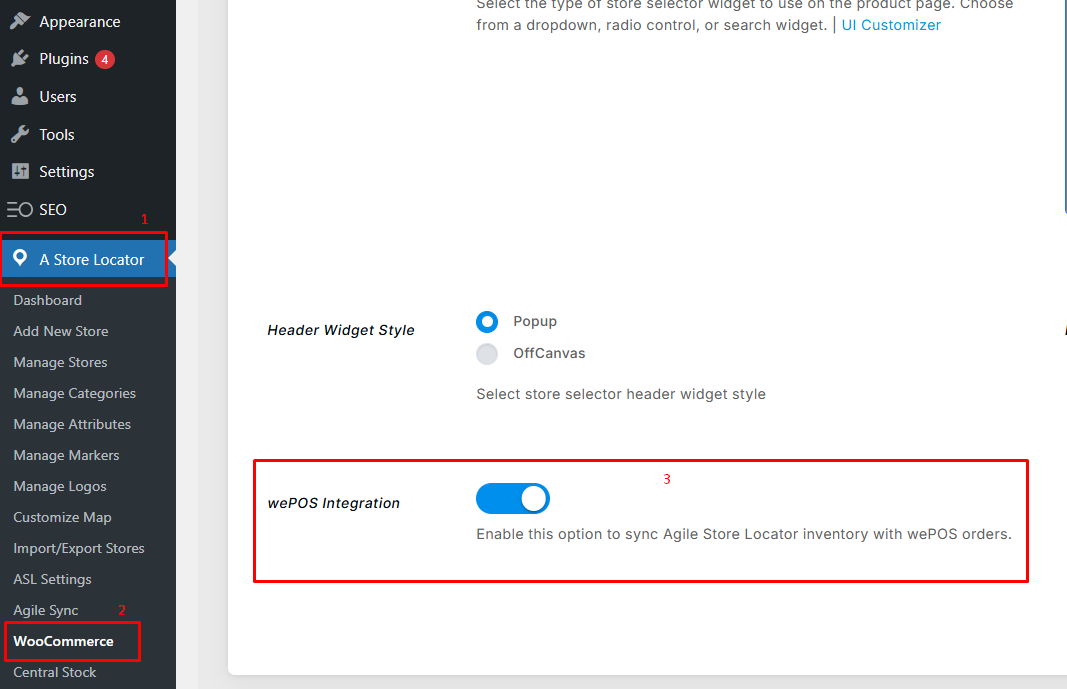
The first thing you will need to do is to enable the “WePOS Integration” option in Multi Store Addons for WooCommerce. To do this, please follow the steps below:
- From the WordPress dashboard, go to the “A Store Locator” plugin and click on the “WooCommerce” tab
- Go to the Inventory tab

- Enable the “WePOS integration” option

Step 2: Install the WePOS Plugin #
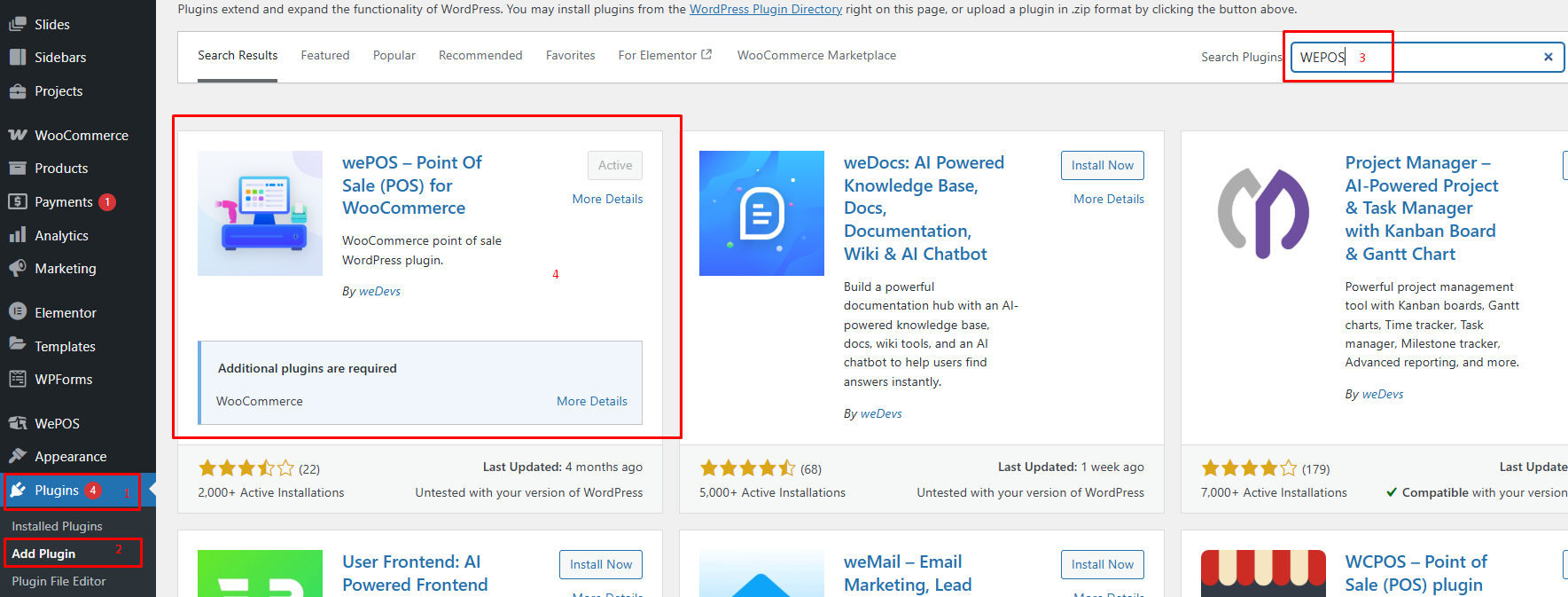
- Log in to your WordPress Admin Dashboard
- Navigate to Plugins → Add New
- Search for WePOS

- Click Install Now, then Activate
- Once activated, you will see WePOS in the WordPress menu
WePOS enables point-of-sale functionality directly inside WooCommerce.
Step 3: Add An Outlet on WePOS #
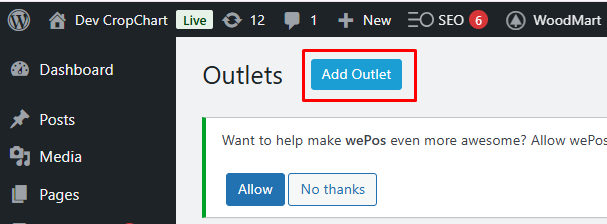
- Go to WePOS → Outlets
- Click on “Add Outlet”, fill in the information, and click on “Create Outlet”

Step 4: Assign a Counter and Cashier to Your Outlet #
- Next to the newly created outlet, click on the three-dot menu button, and click on “Add Counter”
- Enter the counter name and number, and click on “Add Counter”
- Next, click on the three-dot menu button, and click on “Add Cashier”
- Select a Cashier and click on “Assign Cashier”

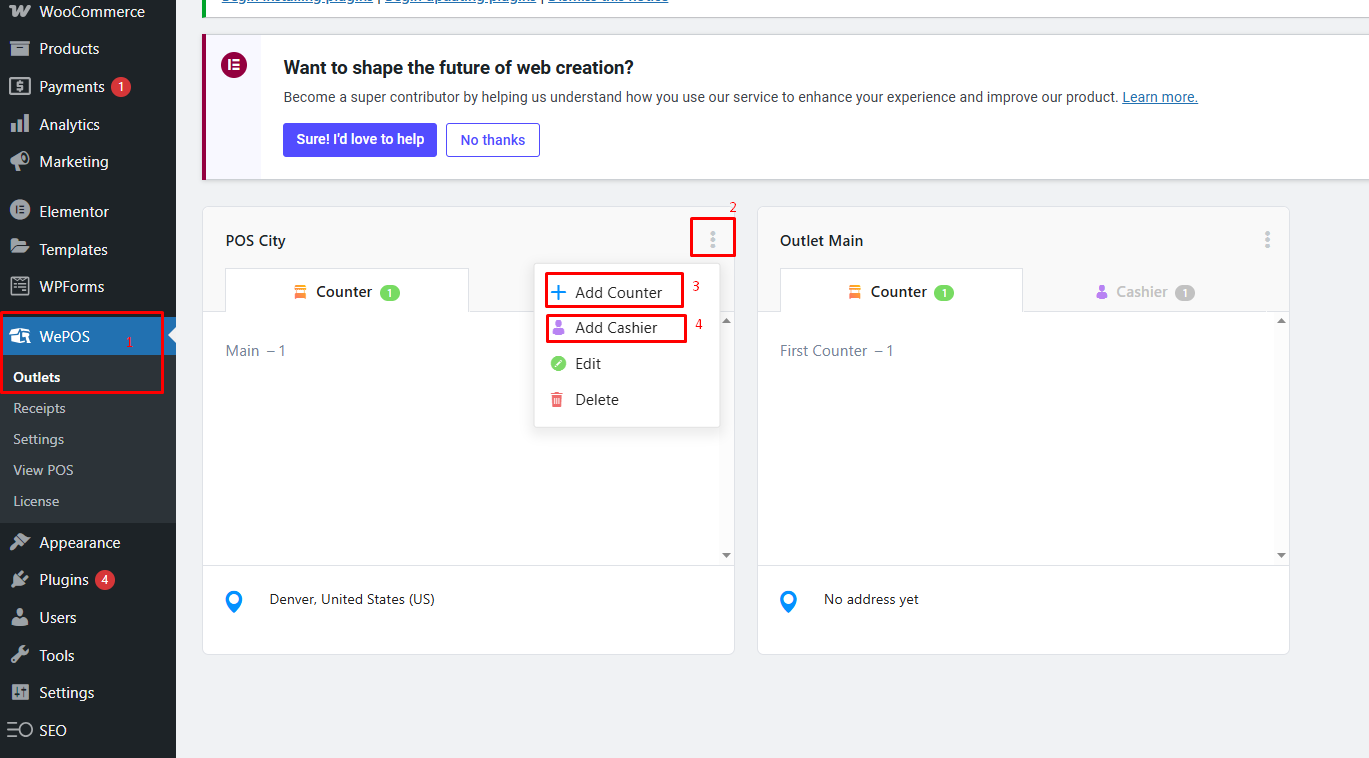
Now, a counter and cashier are assigned to the outlet you just created.
Counters represent physical POS terminals, while cashiers are the users operating them.
Step 5: Link a store with WePOS #
The next step is to link one of your stores with WePOS. To do this, please follow the steps below:
- Go to the WordPress dashboard, navigate to the Agile Store Locator plugin, and click on “Manage Stores”
- Locate the store you want to link to WePOS and click on the “edit” icon

- Go to the WooCommerce tab
- Assign an outlet to this store using the “WePOS Outlet” field
- Click on “Update Store”

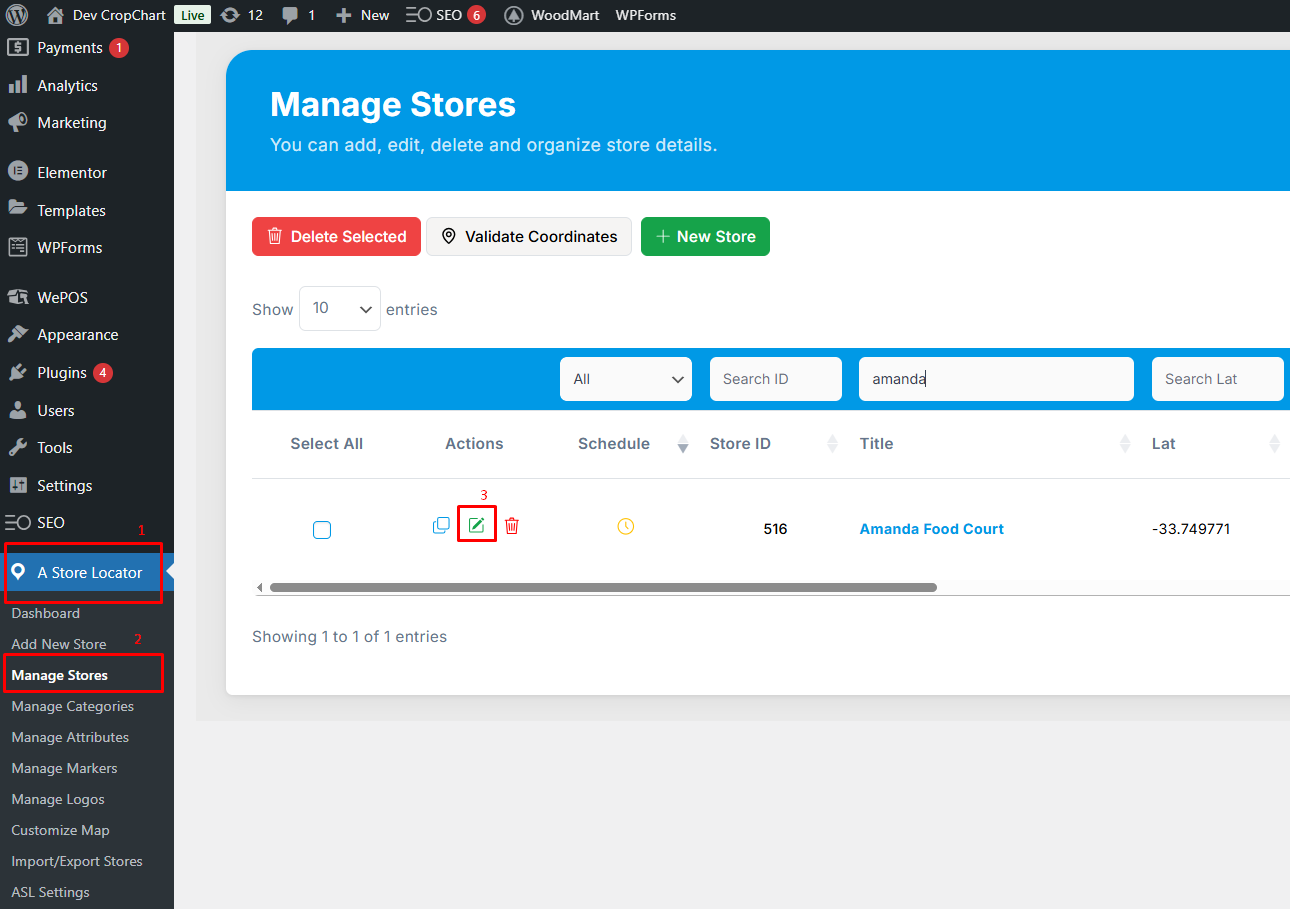
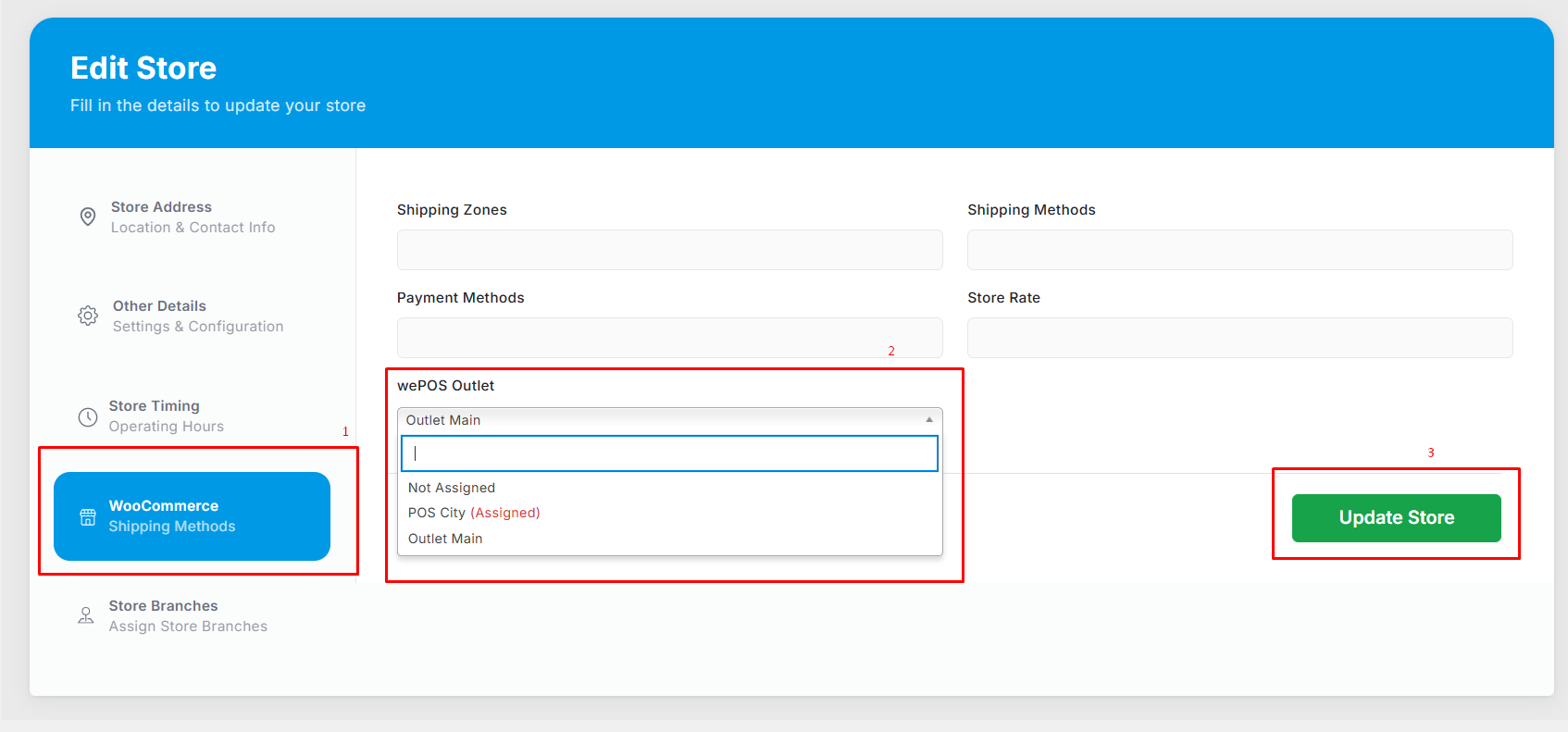
Once this is done, the WePOS outlet will be linked to the store you assigned it to.
Now you can go to the POS interface and manage the products that are assigned to this store.
Step 6: Go to View POS #
- Navigate to WePOS → View POS

- Log in using the outlet and counter credentials you created earlier

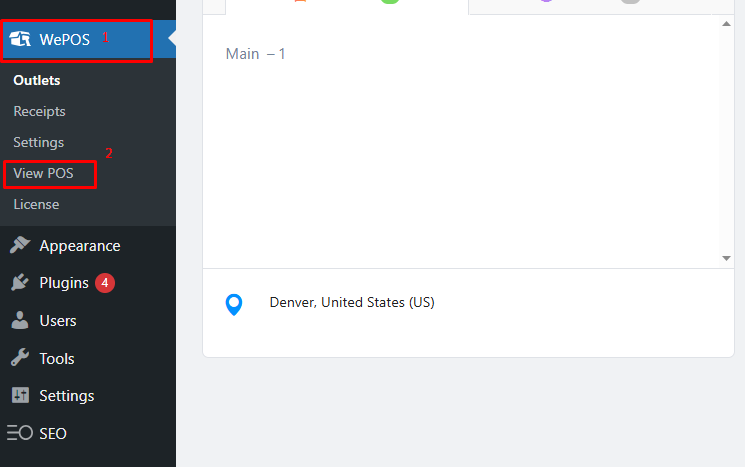
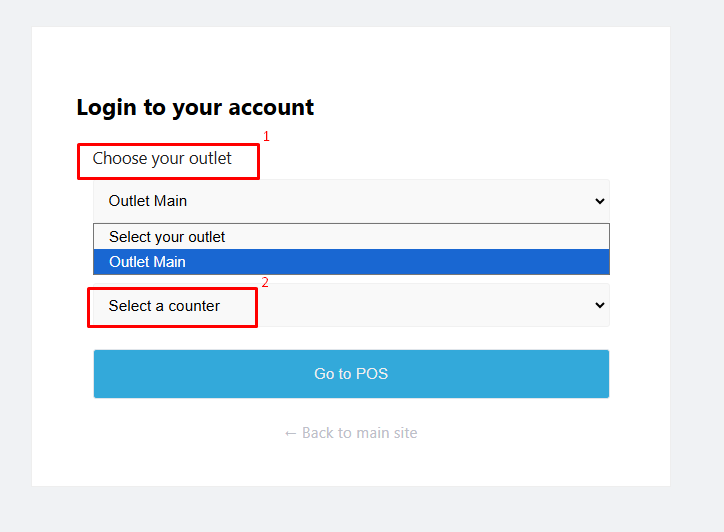
This will open the WePOS interface, where sales transactions are processed.
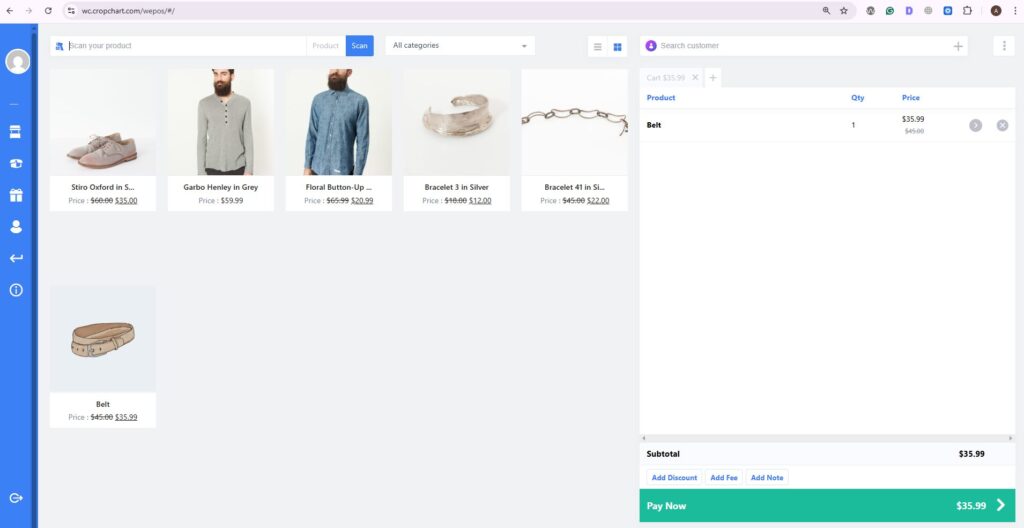
This step ensures that sales, stock, and pricing data sync correctly with the chosen outlet.
Step 7: Change Product Prices and Stock via CentralStock #
- Go to A Store Locator Plugin → Central Stock

- Locate the product you want to change the price and/or inventory for
- Click on “update” next to the correct store location

- Update:
- Product prices
- Stock quantities
- Click on “Update Inventory” to save the changes

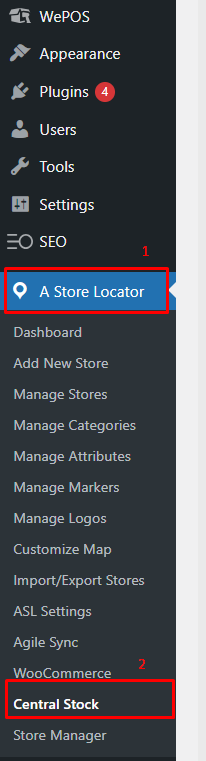
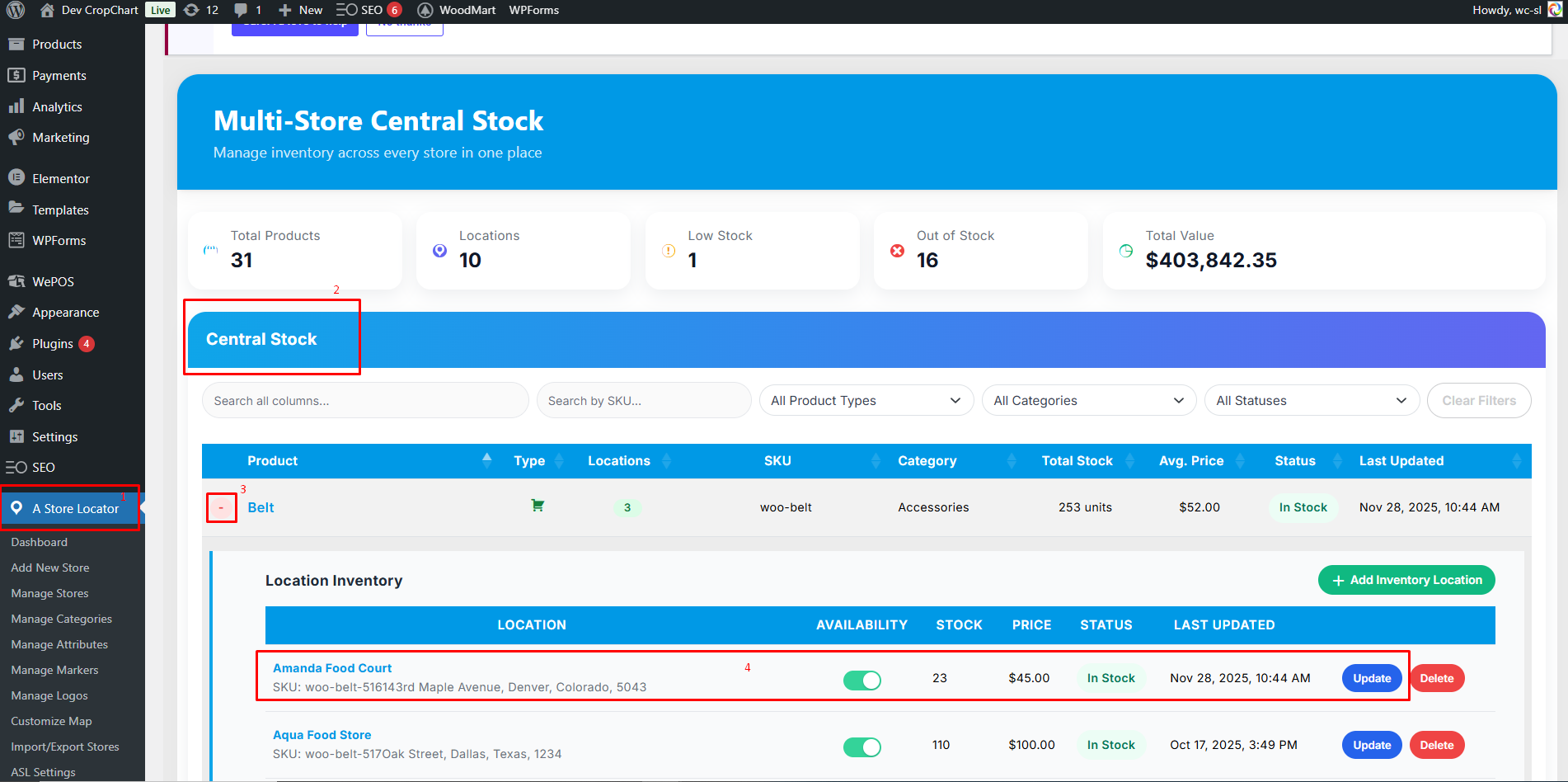
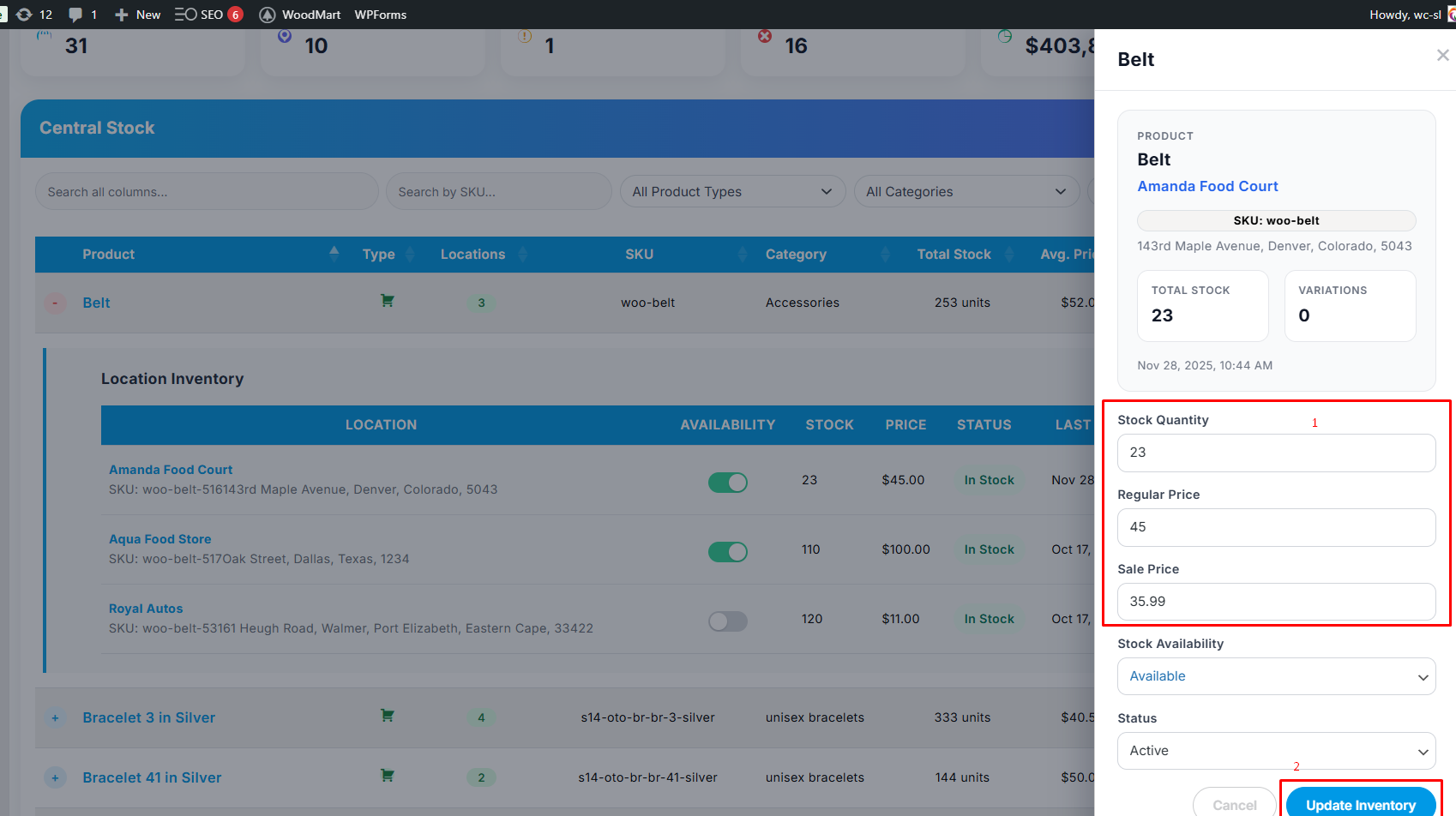
Once you make changes to the product price and inventory, all updates will automatically reflect in:
- WePOS
- WooCommerce product listings
- Assigned store/outlet inventory
Result #
After completing the above steps:
- WePOS is fully linked with Multi-Store Addons for WooCommerce
- Product prices and stock are managed from one central location (Central Stock Section)
- POS transactions update inventory in real time across all outlets
Order Summary #
Once you complete a transaction using WePOS, you can view the transaction details by following the steps below:
- Go to the WordPress dashboard
- Head over to the WooCommerce plugin, and click on “Orders”
- Open the latest transaction and view the transaction details

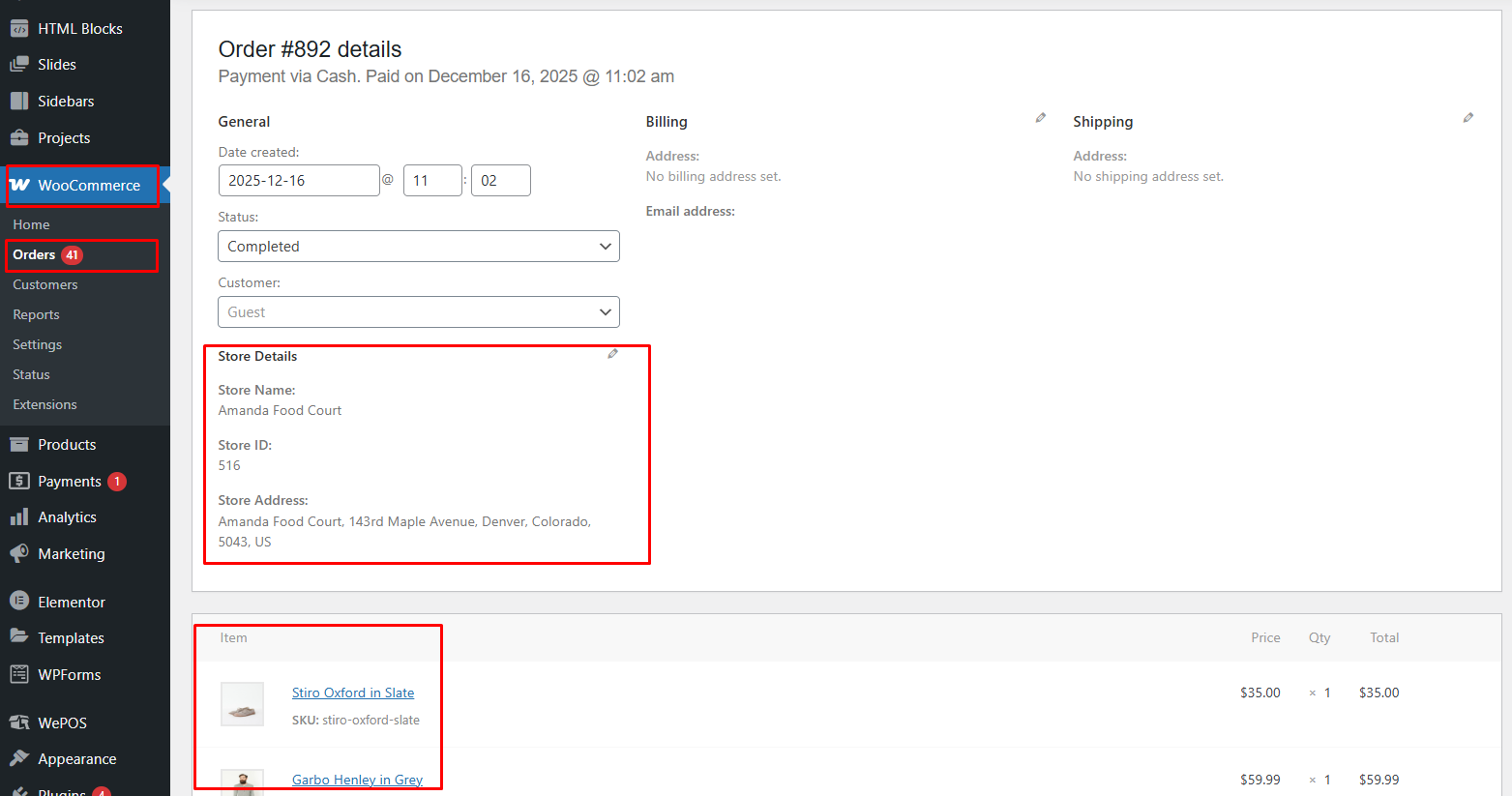
Video #
For a more detailed demo on how to link WePOS with Multi Store addons for WooCommerce, and how to update product prices and stock using the central stock section, please see the video below.


